Monday, May 24, 2010

Data Center Move

Network issues

Dev and QA move

Jim O'Hara - TDS - 617-767-1965

Test scenarios

VPN connections config file

Run book

IP addresses for Japan - Email sent

Server names for B2B -
Dev: dlblvsapb2b01 (172.18.4.40)
QA: qlblvsapxb2b01 (192.168.103.70) and qlblvsapb2b01 (172.18.4.41)
Prod:plblvsapxb2b01 (192.168.103.71) and plblvsapb2b01(172.18.4.42)

Vignette new Sandbox names - dlblvwbvcm, dlblvwbweb (VMs)

Friday Evening Testing

Saturday Evening Testing

Google Mini Testing

MEL testing? webservice?

Tuesday, April 27, 2010

Configuring Tomcat as a Known Server from within Eclipse

You can also configure Eclipse to be able to start and stop tomcat as a server (this approach seems to work well on Unix). To configure Eclipse to be aware of tomcat as a server:

If you have already completed the above steps, you will need to stop tomcat to use the steps below.

  1. Edit ~/eclipse/eclipse.ini and change the memory settings as follows:
    -vmargs -Xms256m -Xmx1024m
    • NOTE: Eclipse has to have enough available memory to actually run Sakai within it
  2. If you have not already done so, set a breakpoint somewhere in your code (preferably something not associated with startup) by left-clicking to the left of a line of code.
  3. Configure Eclipse to launch the desired JVM with the appropriate memory settings:
    1. Under the "Eclipse" menu, select "Preferences"
    2. Open the "Java" heading and the "Installed JREs" subheading.
    3. Single-click the desired run-time, then click "Edit".
    4. Under "Default VM Arguments", enter "-server -XX:+UseParallelGC -Xmx1024m -XX:MaxPermSize=384m -Djava.awt.headless=true", then click "OK".
    5. Click "OK" again to close the preferences dialog.
  4. Add the Sakai tomcat instance to the list of known runtimes:
    1. Under the "Eclipse" menu, select "Preferences"
    2. Expand the "Server" heading on the left side of the dialog that appears, then single-click "Installed Runtimes" and click "Add".
    3. On the dialog that appears, expand the Apache heading, then single-click "Apache Tomcat v5.5" and click "Next".\
    4. Under "Name", enter something meaningful like "Sakai 2.4 tomcat".
    5. Under "Tomcat installation directory", enter the location of your tomcat home directory.
    6. Under "JRE", select the JVM you configured above.
    7. Click "Finish".
  5. Add the server to the debug view
    1. Open the "Debug" view.
    2. Open the "Servers" tab.
    3. Using the right mouse button (or control-click on the mac), open the dialog to create a new server.
    4. Under "Server's host name", fill in "localhost" if it doesn't already appear.
    5. Open the "Apache" heading, then select "Tomcat v5.5 Server".
    6. Under "Server Runtime", select the runtime you defined earlier.
    7. Click "Finish" (you're not actually finished )
    8. Double-click the new server entry, a dialog should appear with more advanced options.
    9. Change "Server name" to something meaningful like "Sakai 2.4 (Server)".
    10. Uncheck "Run modules directly from the workspace".
    11. Click "Open launch configuration".
    12. On the dialog that appears, open the "Arguments" tab. Change "program arguments" to "jpda start".
      • NOTE: If you use "jdpa run" rather than "jpda start", Tomcat will not open a new window to start in and will instead give you all it's standard err and standard out in the Eclipse console window. This is usefull for Windows developers who don't like to read console output from a DOS window.
    13. On the same dialog, change "VM arguments" so that catalina.base is set to the tomcat home directory.
    14. Open the "Source" tab, then click "Add".
    15. On the dialog that appears, single-click "Java Project", then click "OK".
    16. On the dialog that appears, click "Select All", then click "OK".
    17. Open the "Environment" tab, then click "New".
    18. Enter "JPDA_ADDRESS" for "Name", and "8000" for "Value", then click "OK".
    19. Click "Add" again, then enter "JPDA_TRANSPORT" for "Name" and "dt_socket" for "Value". Click "OK".
    20. Click "Apply", then "OK" to save your launch settings.
    21. IMPORTANT: Under the "File" menu, select "Save" to save your overall server definition.
    22. You should now be able to start up the server by right clicking (or control clicking) its heading in the "Servers" tab and selecting "Start".
    23. Once Sakai finishes starting up, open your browser and work with Sakai until you reach your breakpoint. You should be directed into Eclipse where you will see the line of code with your breakpoint, a list of variables, etc., etc.

Tuesday, December 22, 2009

TO LEARN

Java:
  • Annotations
  • Assertions
  • Static import
  • Advanced Generics
  • Whats new in Java 6 and 7
  • Memorize/internalize patterns
  • Memorize/internalize refactorings
  • JUnit non-trivially

Semantic Web:
  • OWL
  • DL
  • Complete semantic web programming books
  • Graph database
  • Write a CMS

Algorithms, Data Structures:
  • Data structures, dynamic programming etc. CLR Book
  • String processing
  • NLP
  • AI

Working with Git

Git looks easy and interesting.

Developing in team, I think there should be a personal source repository where you keep track of your own changes:

Check-in to master daily
Don't check-in anything to master thats not tested. I guess thats where TDD comes in.

Do an auto build hourly on personal

Do daily build just after check-in on master

build, check-outs from master, builds and runs tests?

Need to iron out the steps in my mind

Basic concern:
Branching - merging branches could break stuff?
Forgetting multiple changes made after master checkout - check-in to personal often, build often (test auto into build)

How to manage branches where there is a library change?
For example the new piocda (or other custome apps) for Vignette 7.6?

Sunday, November 29, 2009

Drupal Notes

  • Install Devel module

Monday, November 23, 2009

Acronyms

http://drupal.org/node/302232

AFAIK - As far as I know
AFAICT - As far as I can tell
ATM - At the moment

BoF - Birds of Feather

FWIW - For what its worth

IIRC - If I remember/recall correctly

IOW - In other words

noob - newbie, online slang for newcommer

PITA - Pain in the ass/arse

RTBC - Reviewed and tested by community

RTFM - Read the freaking manual

YMMV - Your milage may vary

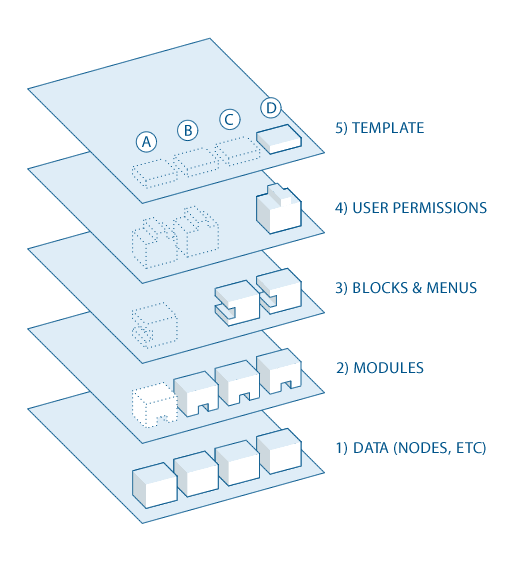
Drupal Overview

Drupal Conceptual Architecture/Layers

Customizing Content Types

Install the Content Construction Kit

See the CCK Handbook on Drupal's website

Durpal Uses in-context preview/editing

Drupal Paths
Unique identifiers

Versions
Latest version is 6.14, 7 under development and will use PHP 5.2. Use PHP 5.2 with the installation.